
Certificates
Relay can issue verified, branded certificates when learners pass an assessment. Use them for course completion, training records, or professional credentials.
Create a certificate config
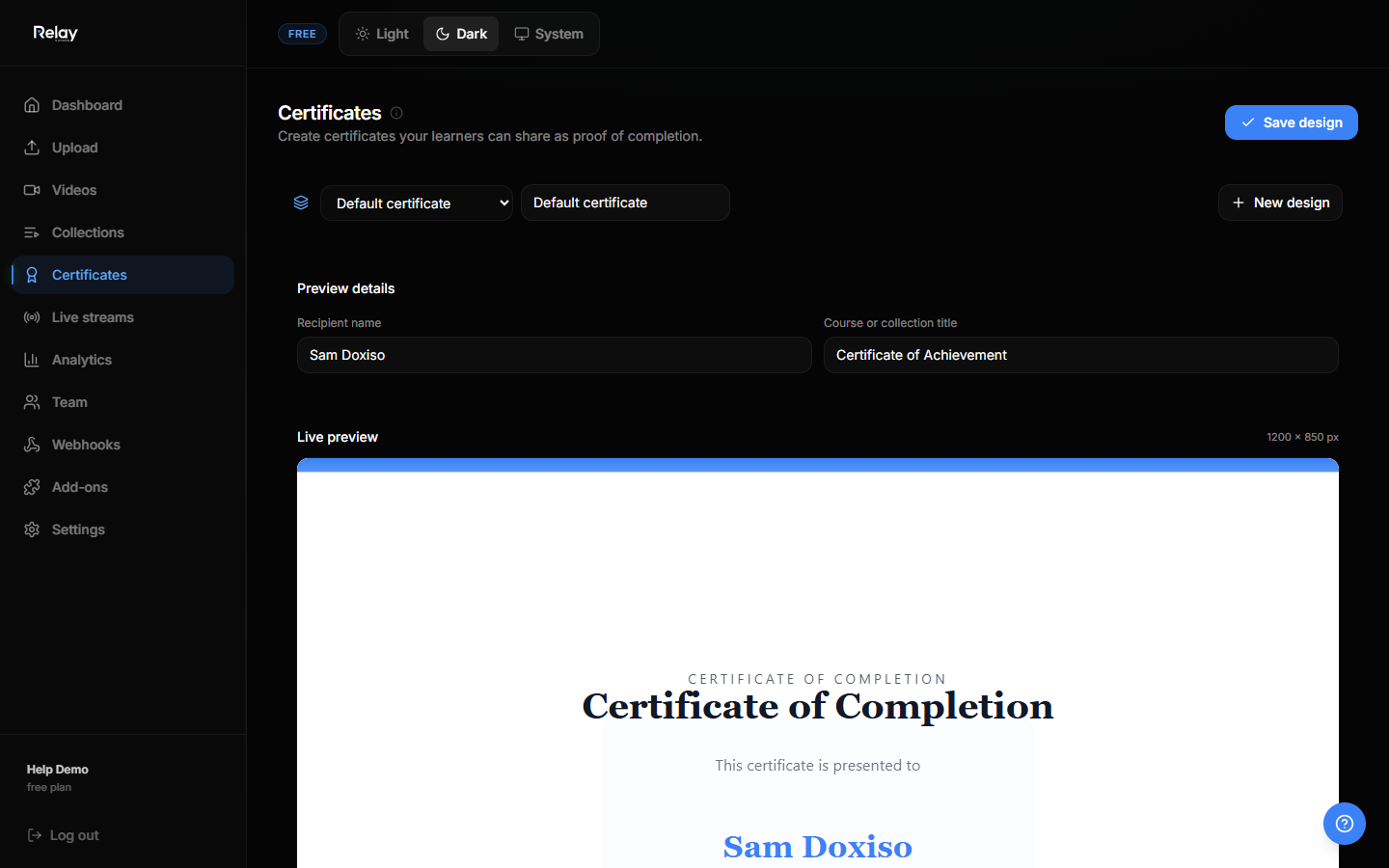
- Go to Certificates in the sidebar.
- Click New certificate config.
- Fill in:
- Title (e.g. "Course Completion Certificate")
- Description
- Organization name
- Signature name and title
- Linked collection
- Save.
Certificate templates
Each config uses a template. Relay stores the layout and renders it with:
- Recipient name
- Award title
- Issue date
- Certificate ID
- Signature block
Upload a branded background or use the default Relay layout.
Auto-issue on pass
- Open the certificate config.
- Choose the linked assessment and pass threshold.
- Enable Auto-issue on pass.
- When a candidate submits and their score is above the threshold, Relay creates a certificate immediately.
If a config does not exist for the collection, the test will still save the attempt, but no certificate is created.
Manual issue
- Go to Reports for the assessment.
- Find the candidate attempt.
- Click Issue certificate next to a passed attempt.
View and verify
Certificates get a unique URL and a verification page:
https://relay.techassembly.io/certificate/{id}
Anyone can open this URL to confirm the certificate is authentic.
Email delivery
When RESEND_API_KEY is configured, Relay emails the certificate link to the candidate on pass. Attachments are not supported yet, so the email contains a link to view and download the certificate.
Revoke a certificate
From the certificate detail page, an admin can revoke a certificate. The verification page will show the updated status.