Notes
Notes are rich-text pages that live inside a collection. They are useful for written instructions, scripts, recipes, or any content where learners benefit from both reading and listening.
What you can add
- Formatted text: headings, paragraphs, bold, italic, and bullet lists.
- Inline images: upload reference photos, screenshots, diagrams, or ingredient samples.
- Embedded videos: insert existing workspace videos as a visual companion to the text.
- AI voice narration: generate an MP3 that reads the note aloud.
Create a note
- Open a collection.
- Click Add content and choose Note.
- Give the note a title.
- Write the body in the editor.
- Click Save note.
Length limit
Notes are capped at 5,000 characters of plain text. The live counter shows how many characters you have used. This keeps AI audio generation fast and the learner experience focused.
Hear the note read aloud
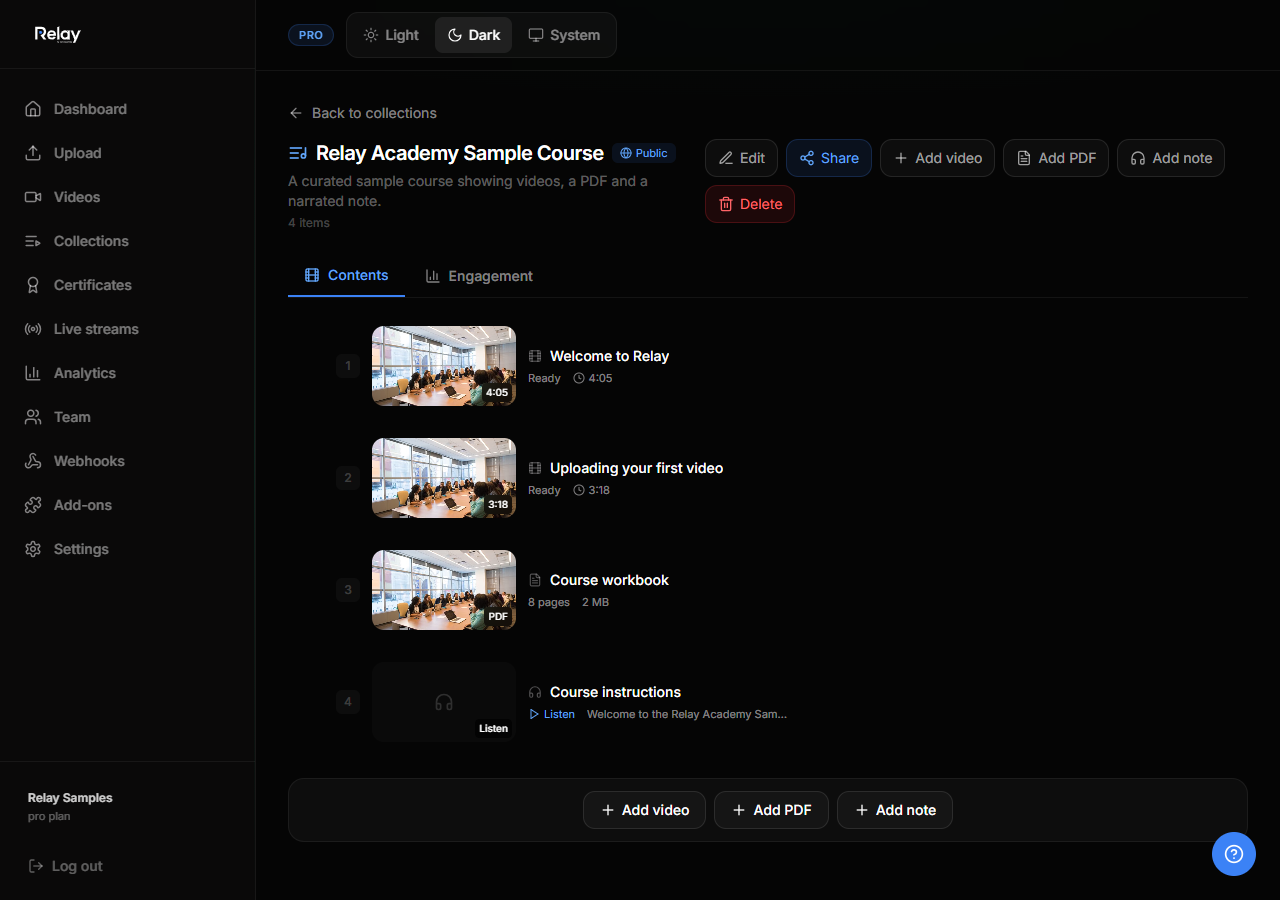
As soon as you save a note, Relay starts generating an AI-narrated MP3 in the background. Learners see the note and, once the audio is ready, a Listen with AI voice player above it. Pressing play reads the note aloud.
If generation ever fails, the player shows a Try again button so you can retry.
The voice currently defaults to English and is cached so it only needs to be generated once.
Add images
Click the image icon in the editor toolbar and choose a file. The image uploads immediately and appears inline where your cursor is. Supported formats are JPG, PNG, GIF, WebP, SVG, and AVIF, up to 2 MB each.
Embed videos
Click the film icon in the editor toolbar to open your workspace videos. Choose a video to insert it at the cursor position inside the note. The note stores a thumbnail placeholder that renders as a Watch link for learners. This keeps the note lightweight while still guiding viewers to relevant video content.
Delete a note
Removing a note from a collection does not delete it permanently until you delete the note itself from the note details view. Deleting a note also removes its generated AI audio file from storage.